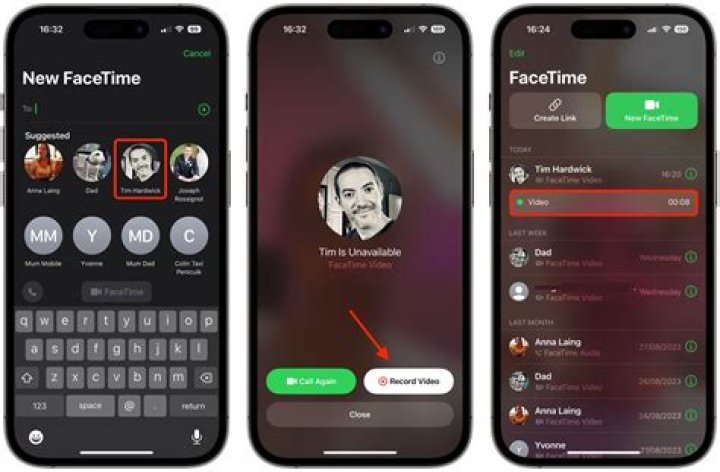
In an age where digital communication reigns supreme, FaceTime has become a staple for connecting with friends, family, and colleagues. While the application allows for seamless video chats, there may be instances where you want to capture those precious moments for future reference. This need has led many users to seek methods for FaceTime recording. Whether it’s to save cherished memories, conduct interviews, or create content for social media, knowing how to record FaceTime calls can be a game changer.
However, many users find themselves asking: is it even legal to record FaceTime calls? And if so, how can one go about it without compromising privacy? This article aims to explore the ins and outs of FaceTime recording, providing you with the necessary tools and knowledge to record your calls responsibly and effectively. With the right approach, you can ensure that your recording experience is both enjoyable and respectful of privacy.
From understanding the legal aspects to discovering the various methods available, this article will guide you through the process of FaceTime recording. So, whether you're looking to save a heartfelt conversation with a loved one or create content for your online platform, read on to discover everything you need to know about FaceTime recording.
What is FaceTime and Why is Recording Important?
FaceTime is a video and audio calling application developed by Apple, allowing users to connect with others over Wi-Fi or cellular data. It provides high-quality video and sound, making it a popular choice for both personal and professional communication. Recording FaceTime calls can be particularly useful for a variety of reasons:
- Saving special moments with family and friends.
- Documenting important business meetings or interviews.
- Creating engaging content for social media platforms.
- Preserving memories for future reference.
Is it Legal to Record FaceTime Calls?
One of the most critical questions surrounding FaceTime recording is its legality. The laws regarding recording conversations vary by location, making it essential to understand your local regulations. Generally, there are two primary types of consent laws:
- One-party consent: Only one person in the conversation needs to consent to the recording.
- All-party consent: All participants in the conversation must agree to the recording.
Before recording a FaceTime call, ensure you are aware of the laws applicable to your region. Additionally, it’s always a good practice to inform the other party that you intend to record the conversation.
How to Record FaceTime Calls on iPhone?
Recording FaceTime calls on your iPhone is relatively straightforward, thanks to the built-in screen recording feature. Here’s a step-by-step guide:
- Open the Settings app on your iPhone.
- Scroll down and tap on Control Center.
- Select Customize Controls and add Screen Recording.
- Start a FaceTime call with the person you wish to record.
- Swipe down from the top right corner of the screen to open the Control Center.
- Tap the Screen Recording button, and wait for the countdown to begin.
- Once the countdown ends, proceed with your FaceTime conversation.
- To stop recording, tap the red status bar at the top of your screen and select Stop.
Your recorded FaceTime call will be saved to your Photos app for easy access.
Can You Record FaceTime on Mac?
Yes, you can record FaceTime calls on a Mac using QuickTime Player. Here’s how:
- Open QuickTime Player on your Mac.
- From the menu bar, select File and choose New Screen Recording.
- Click the record button and select the portion of the screen you want to record.
- Start your FaceTime call.
- To stop recording, click the Stop button in the menu bar.
QuickTime will prompt you to save the recording, allowing for easy storage and sharing.
Are There Third-Party Apps for FaceTime Recording?
While built-in features on iPhone and Mac are convenient, several third-party applications can enhance your recording experience. Some popular options include:
- Ecamm Live: A powerful tool for Mac users that allows for FaceTime recording with advanced features.
- ScreenFlow: A screen recording and video editing software that provides high-quality recordings.
- OBS Studio: A free and open-source software for video recording and live streaming, suitable for advanced users.
When choosing a third-party app, ensure it is compatible with your device and has good user reviews.
Tips for High-Quality FaceTime Recording
To ensure your FaceTime recording is of the highest quality, consider the following tips:
- Use a stable internet connection to prevent disruptions.
- Choose a quiet environment to minimize background noise.
- Check your device’s storage capacity before recording.
- Inform the other party that the conversation is being recorded.
What Should You Do After Recording?
Once you’ve successfully recorded your FaceTime call, there are a few steps to consider:
- Review the recording to ensure everything was captured correctly.
- Edit the video if necessary, using editing software to enhance quality.
- Share the recording with the other party if appropriate.
- Store the video safely, considering backup options.
Conclusion: Embracing the Benefits of FaceTime Recording
FaceTime recording offers a fantastic way to capture meaningful conversations and moments with loved ones or colleagues. By understanding the legalities, utilizing built-in features, and considering third-party applications, you can make the most out of your FaceTime recording experience. Always prioritize respect for privacy and consent, ensuring that your recordings are not only valuable but also ethically sound. Embrace the power of technology, and start recording those unforgettable FaceTime moments today!
The Legacy Of Desi Arnaz Jr.: A Tribute After His Passing
Captivating Moments: The Kid And His Mom Video Original
Unraveling The Age Of Justin Bieber: A Closer Look
How to Record FaceTime Calls on iPhone and iPad [Tutorial]
How to record video calls on Mac including FaceTime calls AppleToolBox
Как записать звонок по FaceTime ПростоMAC